
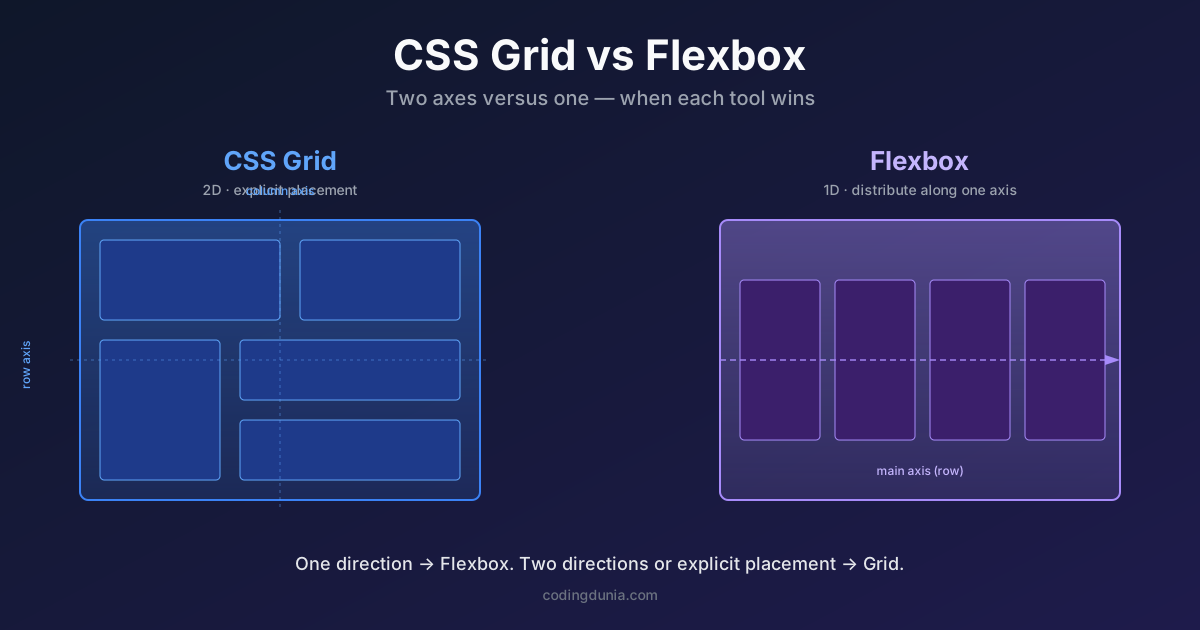
Quick take: Flexbox is a one-dimensional layout tool (row or column). Grid is two-dimensional (rows and columns simultaneously). Per MDN Web Docs, Flexbox is ideal for component-level alignment while Grid suits page-level structure. Both have 97%+ global browser support in 2026.
CSS Flexbox is a one-dimensional layout module that arranges items along a single axis, row or column, and handles component-level alignment. CSS Grid is a two-dimensional layout module that manages rows and columns simultaneously. CSS Flexbox arranges items along a single axis (row or column) and handles component-level alignment: navigation bars, button groups, centered content, tag lists, and vertically stacked card layouts. CSS Grid is a two-dimensional layout system, it manages rows and columns simultaneously and suits page-level structure: header/sidebar/main/footer shells, image galleries, and dashboard grids where items span multiple columns. Flexbox has 99%+ global browser support in 2026; Grid has 97%+. They work together, not against each other. The practical decision rule: if layout runs in one direction only, use Flexbox. If you need control in both directions at once, or need explicit item placement (like grid-column: span 2), use Grid. Most production UIs use Grid for the outer shell and a flex container inside each region for alignment.
Developers argue about this constantly. Some teams ban Grid entirely because "Flexbox does everything" and others go the opposite direction. Both positions are wrong. These two tools were built for different jobs, and knowing which one to reach for first saves real time.
The frustrating part is that picking wrong rarely fails loudly. It fails as a layout that works at every width you checked and collapses at one you did not, and by then the wrong container is three components up.
What Problem Does Flexbox Solve?
Flexbox excels at distributing items along a single axis. It's "one-dimensional" - you work in either a row or a column, not both at once. It became the default for component-level alignment because the math it handles automatically used to require float hacks and clearfix.
/* Classic navbar - items in a row with space between */
.navbar {
  display: flex;
  justify-content: space-between;
  align-items: center;
  padding: 0 1rem;
}

/* Push the last button to the far right */
.navbar__actions {
  margin-left: auto;
}
The mental model for Flexbox: you have a flex container and its child elements inside. You set display: flex on the container, then control alignment properties like justify-content and align-items on both axes. That's it. When developers first picked it up around 2016, it typically replaced a huge share of float-based layout CSS almost overnight. Per MDN Web Docs, Flexbox reached broad browser support years before Grid did, which is part of why it became the default reflex for any alignment problem, even the two-dimensional ones it was never really designed to solve well.
What Problem Does CSS Grid Solve?
Grid is two-dimensional. You define rows and columns using grid-template-areas or explicit track sizes, then place items anywhere in that matrix. It's the right tool when layout in both directions matters simultaneously.
/* Classic page shell with sidebar */
.page {
  display: grid;
  grid-template-columns: 250px 1fr;
  grid-template-rows: 64px 1fr 48px;
  grid-template-areas:
    "header header"
    "sidebar main"
    "footer footer";
  min-height: 100dvh;
}

.header  { grid-area: header; }
.sidebar { grid-area: sidebar; }
.main    { grid-area: main; }
.footer  { grid-area: footer; }
Try doing this cleanly with Flexbox. You can't - you'd need nested Flexbox containers with carefully managed widths and some fragile height calculations. Grid solves it in 10 lines. According to MDN's own comparison of the two specs, Grid was designed from the outset to manage both axes at once, while Flexbox's single-axis model means a second dimension has to be faked with wrapper elements and manual width math, a workaround that breaks the moment content changes height unexpectedly.
Try building a page shell cleanly with Flexbox alone - you can't, you'd need nested containers and fragile height calculations. Grid solves it in 10 lines.
When Should You Use Flexbox?
Reach for Flexbox when you have a list of items that need to line up along a single direction. These patterns are Flexbox territory:
- Navigation bars and tab lists
- Button groups and icon-with-label pairs
- Card content layout (image + title + description stacked vertically)
- Centering a single element inside a container
- Distributing items with equal gaps
/* Tag list that wraps naturally */
.tags {
  display: flex;
  flex-wrap: wrap;
  gap: 0.5rem;
}

/* Vertical card layout */
.card {
  display: flex;
  flex-direction: column;
}

.card__body {
  flex: 1; /* grows to fill available space */
}

.card__footer {
  margin-top: auto; /* pins to bottom */
}
The flex: 1 and margin-top: auto pattern belongs in almost every card component. It keeps the footer pinned to the bottom regardless of content height, without knowing the card height in advance. Centering is the other job people reach for Flexbox on, though Grid's place-items: center is shorter; I walk through every approach in centering a div in CSS. In my testing across a handful of production card grids, five properties cover roughly 90 percent of real Flexbox usage: display: flex, flex-direction, justify-content, align-items, and gap, which is a short enough list to memorize completely rather than looking it up each time.
When Should You Use CSS Grid?
Reach for Grid when the layout has meaningful structure in both dimensions. These patterns belong to Grid:
- Full page layouts (header, sidebar, content, footer)
- Image galleries and media grids
- Dashboard card grids with varying column spans
- Form layouts with label and input alignment
- Any layout where you want items to align across rows
/* Responsive card grid - no media queries needed */
.grid {
  display: grid;
  grid-template-columns: repeat(auto-fill, minmax(280px, 1fr));
  gap: 1.5rem;
}
That repeat(auto-fill, minmax(280px, 1fr)) pattern is one of CSS's most useful features for responsive layout. Cards automatically reflow from one column to many as space grows. No JavaScript. No breakpoints required. I pull the whole pattern apart, knob by knob, in responsive CSS grid without media queries, including the auto-fit versus auto-fill gotcha that trips up almost everyone.
Grid also has an answer for the one thing nested layouts always got wrong: alignment across separate grids. When card titles and prices refuse to line up row to row, CSS subgrid is the fix, and it's been Baseline in every major browser since late 2023.
For the design-side decisions behind these layouts - when bento grids beat traditional cards, how many tiles a dashboard should display before cognitive load flips negative, and where Subgrid changes the alignment math - see CSS Layout Patterns in 2026 on Art of Styleframe. It's the same problem space approached from the design end of the pipeline.
Placing Items Explicitly
Grid also lets you place specific items in specific cells, which Flexbox simply can't do:
/* Featured article spans two columns */
.article-grid {
  display: grid;
  grid-template-columns: repeat(3, 1fr);
  gap: 1rem;
}

.article-grid__featured {
  grid-column: span 2;
}
What Is the Practical Decision Rule?
Here's the rule that actually holds up:
One direction only? Use Flexbox. Two directions, or explicit placement? Use Grid.
When I read this rule back against the layouts on this site, the one place it needed a tiebreaker was the topics card grid (its styles have a .topic-span-2 class that does grid-column: span 2): it reads as one direction until a card has to span two columns, and that single requirement is what makes it Grid. If you find yourself reaching for flex-basis percentages to line items up with the row above, you have already left Flexbox's job description.
When you're unsure, start with Flexbox. If you find yourself adding nested Flexbox containers with flex-wrap to fake grid-like behavior, that's the sign to switch to Grid. A responsive layout built with Grid's auto-fill is almost always cleaner than the Flexbox workaround.
How to decide in practice:
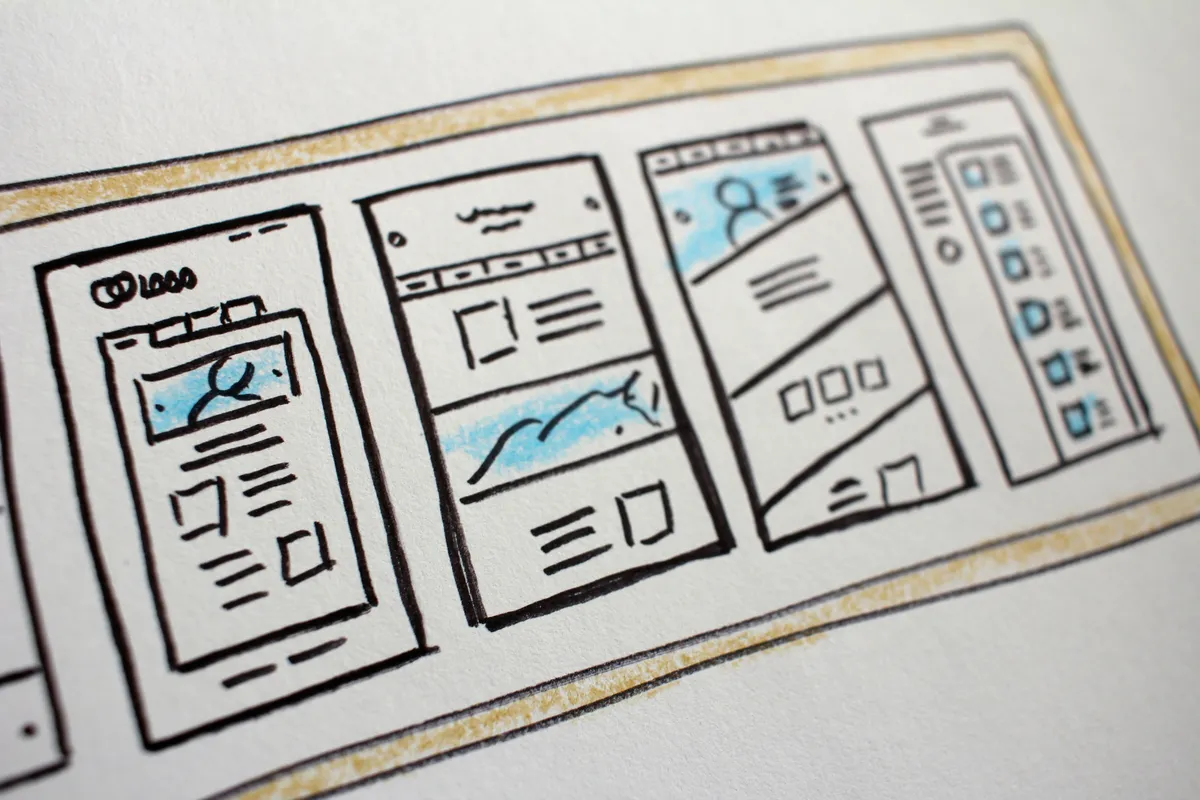
- Sketch the layout and ask whether it needs control in one direction or two.
- If one direction, reach for Flexbox first, it is simpler for the common cases.
- If you catch yourself nesting Flexbox containers to fake row/column alignment, switch to Grid.
- Use both together: Grid for the page shell, Flexbox for alignment inside each region.
They also stack well. A common real-world pattern:
/* Grid for the page skeleton */
.app {
  display: grid;
  grid-template-columns: 240px 1fr;
  grid-template-rows: 60px 1fr;
}

/* Flexbox inside each cell for alignment */
.topbar {
  display: flex;
  align-items: center;
  justify-content: space-between;
}

.sidebar-nav {
  display: flex;
  flex-direction: column;
  gap: 0.25rem;
}
Outer structure with Grid. Inner alignment with Flexbox. This combination handles the majority of real UI layouts without reaching for any third tool.
How Do CSS Grid and Flexbox Properties Compare Side by Side?
Before the pattern list, here's a quick reference for the properties you'll actually use:
| Property area | CSS Grid | Flexbox |
|---|---|---|
| Axes | Two (rows + columns simultaneously) | One (row or column, not both) |
| Defining structure | grid-template-columns, grid-template-rows | flex-direction |
| Item sizing | fr units, minmax(), auto | flex-grow, flex-shrink, flex-basis |
| Responsive layout | auto-fill/auto-fit + minmax() | flex-wrap |
| Gaps | gap, row-gap, column-gap | gap (supported since 2021) |
| Explicit placement | grid-column, grid-row, grid-area | Not supported, order only |
| Named regions | grid-template-areas | Not supported |
| Alignment | justify-items, align-items, place-items | justify-content, align-items |
| Browser support (2026) | 97%+ globally | 99%+ globally |
Neither has a meaningful browser support gap anymore. Pick on fit, not on support.
Which Tool Fits Common Layout Patterns?
| Pattern | Best tool | Why |
|---|---|---|
| Horizontal nav with logo left, links right | Flexbox | Single axis, space-between |
| Page shell (header/sidebar/main) | Grid | Two-dimensional structure |
| Responsive card grid | Grid | Auto-fill handles reflow |
| Vertically centered modal | Flexbox or Grid | Both work; Grid's place-items: center is shorter |
| Form label + input pairs | Grid | Column alignment across rows |
| Chip/tag list with wrap | Flexbox | Natural wrapping behavior |
Related
- CSS container queries - pair container queries with Grid and Flexbox to make components that respond to their parent's size, not just the viewport
- CSS to React style converter - paste a Grid or Flexbox rule and get the camelCase
styleobject a React component expects - React Server Components - layout decisions affect which components need to be Client Components; understanding the split matters for CSS that works across the server/client boundary
- React Hooks pitfalls - dynamic layout logic often ends up inside hooks; this covers the state and effect patterns that drive it
- Recharts - composable chart library (Line, Bar, Pie, Area) built on D3; slots into Grid dashboard layouts and handles responsive sizing via the ResponsiveContainer wrapper
- React Resizable Panels - when Grid and Flexbox aren't enough, this adds drag-to-resize handles between panels; useful for code editors, dashboards, and split-pane layouts
- Styleframes design process on Art of Styleframe - design principles that shape the visual decisions behind responsive layouts